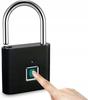
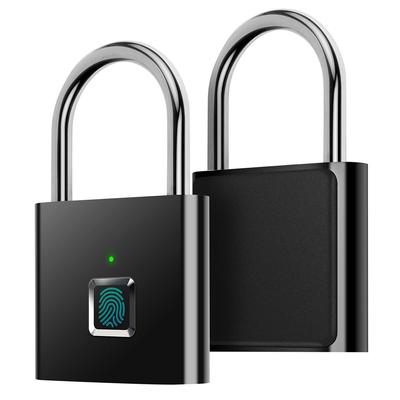
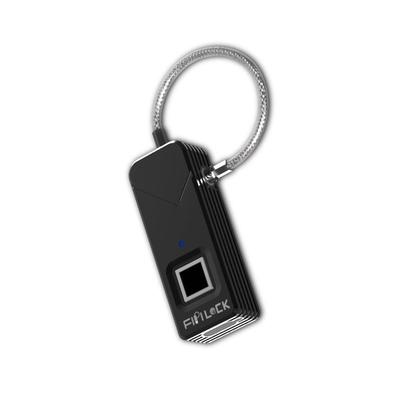
AICase Fingerprint Padlock Smart Security Lock with USB Charge AICase Fingerprint Padlock is a technologically advanced security solution that eliminates the need for keys. Perfect for use at home, at the gym, for luggage, or anywhere else where quick and secure protection is needed. NO APP NEEDED! What's different about our padlock? It unlocks effortlessly, unlike other cheaper alternatives. Quality and security. Product Features: 1. Fingerprint Recognition: 360° Fingerprint Recognition: At all angles, precise and quick unlock with one touch. Fast Response Time: Recognition time is less than 0.5 seconds. High Accuracy: False Rejection Rate (FRR) below 1%, False Acceptance Rate (FAR) below 0.002%. 2. USB Charging: Built-in Polymer Battery: Charging via USB cable (micro USB port on the bottom). Long Battery Life: Over 9000 openings per charge. 3. Durable Construction: Zinc Alloy: Lock body made of zinc alloy, resistant to cutting, breaking and sawing. 5mm diameter clasp: Durable and resistant to disassembly. 4. Low Power Consumption: Long Standby Time: The lock features low power consumption and long standby time. 5. Waterproof: IP62 Protection Rating: Water and dust resistant, ideal for use in various weather conditions. 6. Wide Application: Versatility: Suitable for locks on cabinets, backpacks, suitcases, golf bags, school lockers, wardrobes, warehouses and many other places. Technical Specifications: Dimensions: 41.5 x 43 x 13 mm Clasp diameter: 5 mm Weight: 90 grams Charging interface: Type-C Number of stored fingerprints: 10 Recognition time: < 0.5 sekundy Waterproof rating: IP55 Battery life per charge: 180 days What's included in the box: 1 x Fingerprint lock 1 x USB charging cable 1 x User manual Frequently Asked Questions: 1. How do I delete all fingerprints (Factory Reset)? Deletion is only possible using the administrator fingerprint. Place the administrator fingerprint (first two fingerprints) on the reader and hold for 10 seconds until the red LED lights up. Release and place it again to confirm deletion of all registered fingerprints. A green LED with a long beep indicates that all fingerprints have been deleted and the lock is reset to factory settings. 2. How do I correctly register a fingerprint? The first two fingerprints are the administrator. Press the fingerprint reader until the blue light turns on. Touch the reader 10 times in different positions with one finger until the green light turns on (first fingerprint setting completed). Repeat the procedure for the second fingerprint until the green light turns off (second fingerprint setting completed). 3. What should I do if the battery is low? When the battery level drops below 30%, the lock will display a red light. If the battery is low, connect the lock to the charger for 2-5 minutes, after which you will be able to open the lock with your fingerprint. With the AICase Fingerprint Padlock, security and convenience go hand in hand. The lock provides quick keyless access, long battery life, and a robust construction ideal for a variety of applications. Fingerprint lock user manual Unlock method: Fingerprint Number of fingerprints: 30 Charging type: Micro-USB Emergency unlock: Morse code Standby time: 6 months Material: Zinc Alloy Protection Rating: IP54 Operating Temperature: -1050℃ Registering the first 2 fingerprints By default, any fingerprint can unlock the lock. Once registered, only the registered fingerprint can unlock the lock. Unlock the lock with any fingerprint. Then press and hold until the blue light turns on. Registering a fingerprint: Press the same finger in different positions until the green light turns on (change the pressure position if the red light turns on). Register another fingerprint in the same way as in step 2 until the green light turns off, indicating two fingerprints have been successfully registered. Registering new fingerprints Unlock the lock with your fingerprint and hold until the blue light turns on. Press your fingerprint in various positions until the blue light turns off. If the enrollment time exceeds the limit, the system will exit enrollment mode. To restart the process, follow the steps above. Setting an Emergency Code (Morse Code) After enrolling your fingerprint, unlock the lock and hold your finger until the blue light turns on, then continue holding it until the white light turns on. Release your finger, the green light will turn on. Press your finger repeatedly, counting the number of presses (e.g. 5 times means 5), set the numbers you want, and wait for the blue light to turn on. When the blue led lights up, follow the same process to register the second digit (e.g. 6 times means 6), then wait for the blue led to turn off. After the led turns off, the number set in the green and blue leds will be a two-digit code (e.g. 56 set in steps 2 and 3). Remember the code you set. Emergency Code Unlock (Morse Code) In case all registered fingerprints do not work, use any fingerprint to press and hold until the white led lights up. Release your finger, the green led will light up. Press the set number of times (e.g. 5 times) and wait for the blue light to come on. When the blue light comes on, press the set number of times (e.g. 6 times) and wait for the light to turn off. If the flashing red light is on, it means the code is incorrect. A flashing green light means the code is correct. The lock will unlock if the code is correct and the lock will revert to the factory settings. You will need to register a fingerprint to use the lock. Use the default emergency code 33 (press green light 3 times, then press blue light 3 times) to unlock if you have not set a backup code. The default emergency code will be inactive if you set your own emergency code. Factory reset Unlock the lock and hold your finger, ignoring the blue and white LEDs, until the red LED lights up. All registered fingerprints and Morse codes will be deleted and restored to factory settings. Low battery warning If the red LED flashes after unlocking, it indicates low battery and needs charging. Connect the charging cable, the red LED lights up, it indicates charging is in progress. When the red light turns off, it means it is fully charged. Important: Before using the product for the first time, you must fully charge it.